

Rocking the best PC graphics settings for Call of Duty: Black Ops 7 can give you a real advantage over players who haven’t optimized their setup.
Fine-tuned graphics settings can help you maximize FPS, reduce lag, and keep gameplay smooth and responsive in CoD, whether you’re running a budget build, a mid-range system, or a top-tier rig.
Here’s a guide to the best graphics settings that will boost your performance in BO7 across all types of PC configurations.
Best PC graphics settings in Black Ops 7
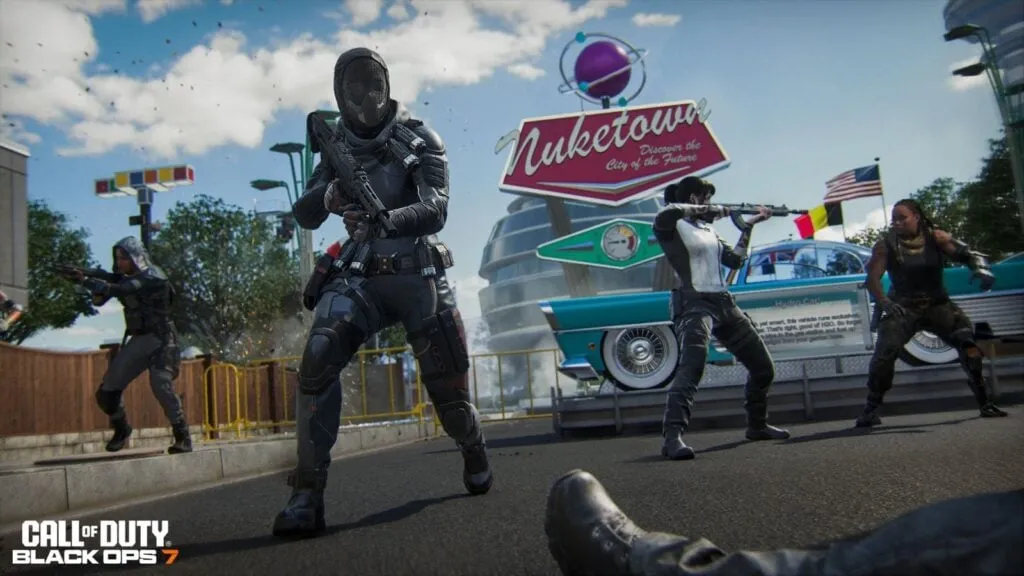
The settings below should work well for the majority of PC players, though a few options will vary depending on personal preference. For context, I have a 1080p setup with an AMD Ryzen 7600X and an NVIDIA RTX 4060, and I’ve had consistently smooth performance with these configurations.
Keep in mind that these recommendations are geared toward maximizing frame rates, which may come at the cost of some visual quality. Feel free to adjust any setting to better match your own preferences and hardware capabilities.
Display
- Display Mode: Fullscreen Exclusive
- Display Monitor: Set to your monitor
- Display Adapter: Set to your GPU
- Screen Refresh Rate: Set to your monitor’s refresh rate
- Display Resolution: Set to your monitor’s resolution
- Aspect Ratio: Automatic
- Restart Shaders Pre-Loading: Do this after adjusting all your settings
- Display Gamma: 2.2 (sRGB)
- Gamma/Brightness: 55
- NVIDIA Reflex Low Latency: On or On + Boost if your PC is CPU-bound
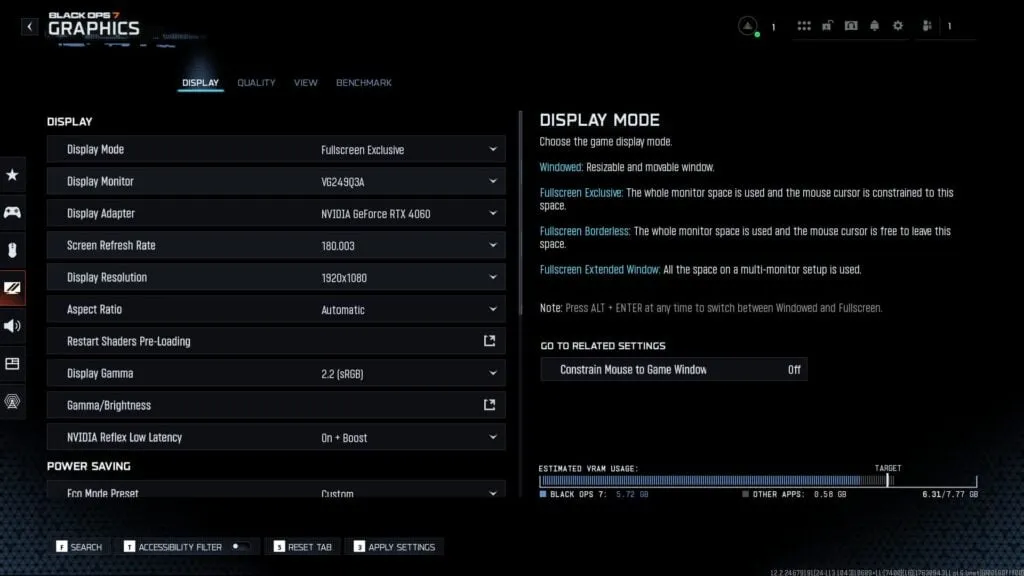
Always use Fullscreen Exclusive and match your monitor, graphics adapter, refresh rate, and resolution to your actual hardware to get the smoothest display possible. For brightness, I typically stick to 55 in CoD titles I’ve played, which offers a good balance and makes enemy visibility much clearer.
For NVIDIA Reflex Low Latency, you’ll first need to determine whether your system is CPU-bound. To check this, enable Telemetry in the Interface settings. If your CPU time is higher than your GPU time, your system is CPU-bound, and you should set Reflex to On + Boost for the best results.

Power Saving
- Eco Mode Preset: Custom (Off)
- V-Sync (Gameplay): Off
- V-Sync (Menus): Off
- Custom Frame Rate Limit: Custom
- Gameplay Custom Frame Rate Limit: Set to your monitor’s refresh rate
- Menu Custom Frame Rate Limit: 60
- Out of Focus Custom Frame Rate Limit: 10
- Reduce Menu Render Resolution: Native
- Pause Game Rendering: Off
- Reduce Quality When Inactive: Off
- Focused Mode: 0
High Dynamic Range (HDR)
- HDR: Off
- HDR Calibration: N/A
Quality
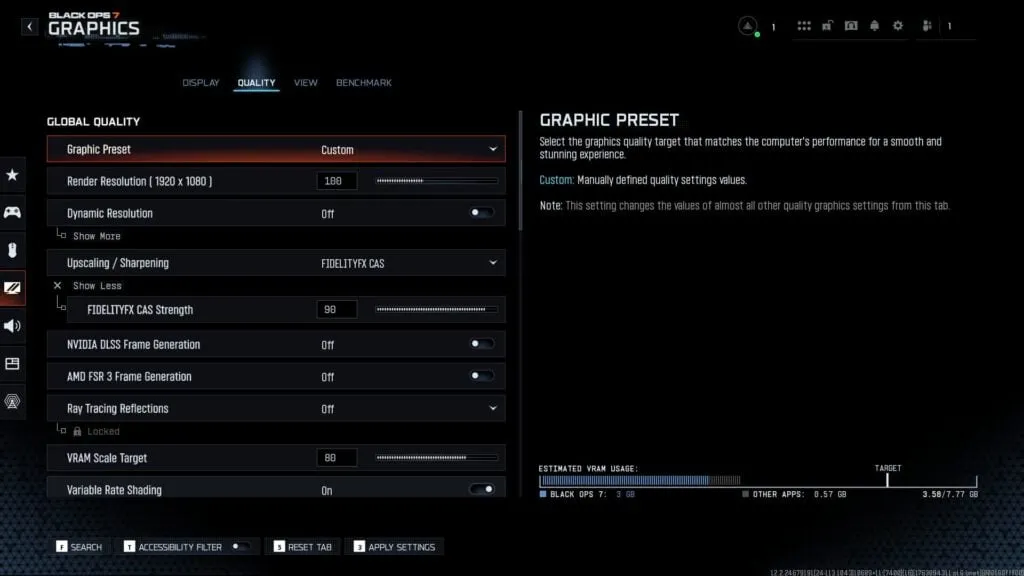
Global Quality
- Graphic Preset: Custom
- Render Resolution: 100
- Dynamic Resolution: Off
- Upscaling/Sharpening: FidelityFX CAS
- FidelityFX CAS Strength: 90
- NVIDIA DLSS Frame Generation: Off
- AMD FSR 3 Frame Generation: Off
- Ray Tracing Reflections: Off
- VRAM Scale Target: 80
- Variable Rate Shading: On
Many players, including myself, highly recommend setting FidelityFX CAS to around 80 to 90 for Upscaling/Sharpening to achieve a crisp visual while maintaining exceptional responsiveness.
Details & Textures
- Texture Resolution: Low or Normal
- Texture Filter Anisotropic: Low
- Depth of Field: Off
- Detail Quality: Low or Normal
- Particle Resolution: Very Low
- Bullet Impacts: Off
- Persistent Effects: Off
- Shader Quality: Medium
- On-Demand Texture Streaming: Optimized
- Allocated Texture Cache Size: 32
- Download Limits: Off
- Local Texture Streaming Quality: Low
- In-Game Video Quality: Low
- Shadow Quality: Normal
- Screen Space Shadows: Off
- Occlusion and Screen Space Lighting: Off
- Screen Space Reflections: Off
- Static Reflection Quality: Low
Environment
- Terrain Quality: Low to Medium
- Volumetric Quality: Low
- Deferred Physics Quality: Low
- Weather Grid Volumes Quality: Off or Low
- Water Quality: Off
My graphics quality recommendations are once again focused on maximizing frame rates. If you prefer more realistic visuals, feel free to raise these settings, provided your system can support the extra load. Regardless of your chosen graphics quality, keep Depth of Field turned off to prevent unwanted blur while aiming and moving.
View
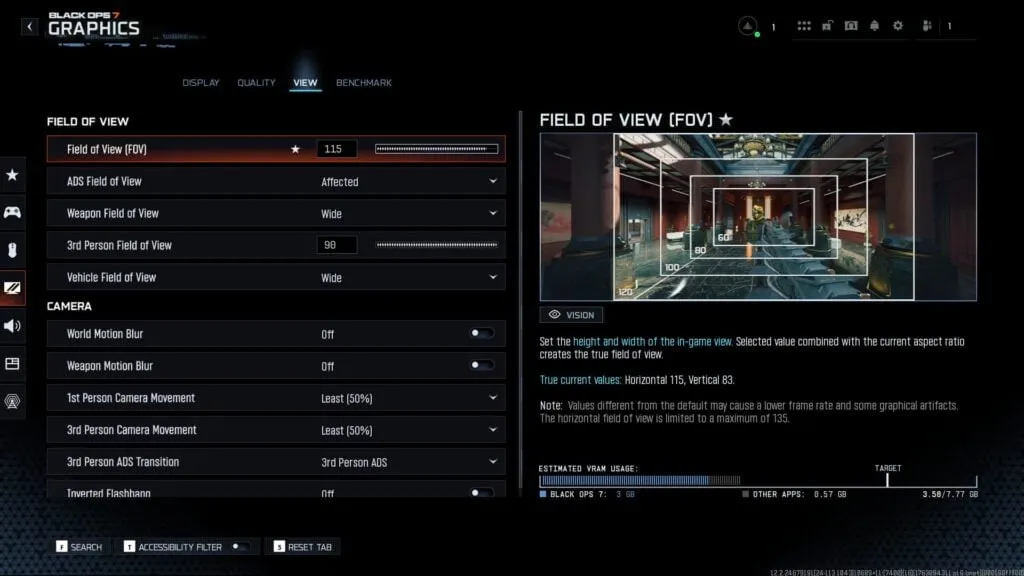
Field of View
- Field of View (FOV): 110-120
- ADS Field of View: Affected
- Weapon Field of View: Wide
- 3rd Person Field of View: 90
- Vehicle Field of View: Wide
Camera
- World Motion Blur: Off
- Weapon Motion Blur: Off
- 1st Person Camera Movement: Least (50%)
- 3rd Person Camera Movement: Least (50%)
- 3rd Person ADS Transition: 3rd Person ADS
- Inverted Flashbang: Off
For your Field of View, I recommend starting around 110, or slightly lower if you’re new to higher FOV values. You can gradually increase it as you get more comfortable, so you’ll eventually have a wider FOV to see more details on your screen.
Ensure that you set the ADS Field of View to Affected so you won’t struggle with visual recoil when ADSing. Also, turn off or set to the lowest values the various Camera options to avoid distracting motion blur or visual clutter during gameplay.
If you’re looking to fine-tune other settings in BO7, check out our comprehensive guides:
- Best controller settings
- Best aim assist settings
- Best mouse and keyboard settings
- Best audio settings
- Best movement settings